Customers
The Customers screen requires WCPOS Pro. Free users can select existing customers for orders but cannot view the full customer list or edit customer details.
The Customers screen provides comprehensive customer management directly within the POS. View, edit, and create customers without switching to the WooCommerce admin.
Interface Overview
Header Actions
At the top of the screen:
- Search bar - Find customers by name, email, company, phone or tax ID
- Add Customer () - Create a new customer
- Display settings () - Configure visible columns
Customer Table
The main area displays customers with:
- Avatar - Customer profile picture (or placeholder)
- First Name - Customer's first name
- Last Name - Customer's last name (sortable)
- Email - Contact email address
- Billing Address - Full billing address
- Date Created - When the customer was added
- Actions - The open arrow (›), which opens the customer's edit modal
Footer
- Customer count with sync button (). Long press for Clear and Refresh option
Key Features
Customer Search
Find customers by:
- First or last name, email address, username
- Billing or shipping name, company and phone
- Tax ID
Search matches every word you type, in any order and across those fields — so jane acme finds Jane whose company is Acme. Phone numbers match by their digits however they were typed. Sorting and filtering run on the server, covering all your customers rather than only those already on the device. The full list of matched fields is in What Search Matches.
Add New Customer
Create customers directly from the POS:
- Click the icon in the header
- Fill in customer details
- Save the new customer
The customer is created in WooCommerce and immediately available for orders.
Edit Customer
Update customer information:
- Click the open arrow (›) at the end of the customer's row
- The edit modal opens
- Modify details (name, email, addresses)
- Save changes
Changes sync to WooCommerce automatically.
Display Settings
Click the sliders icon () to customise visible columns.
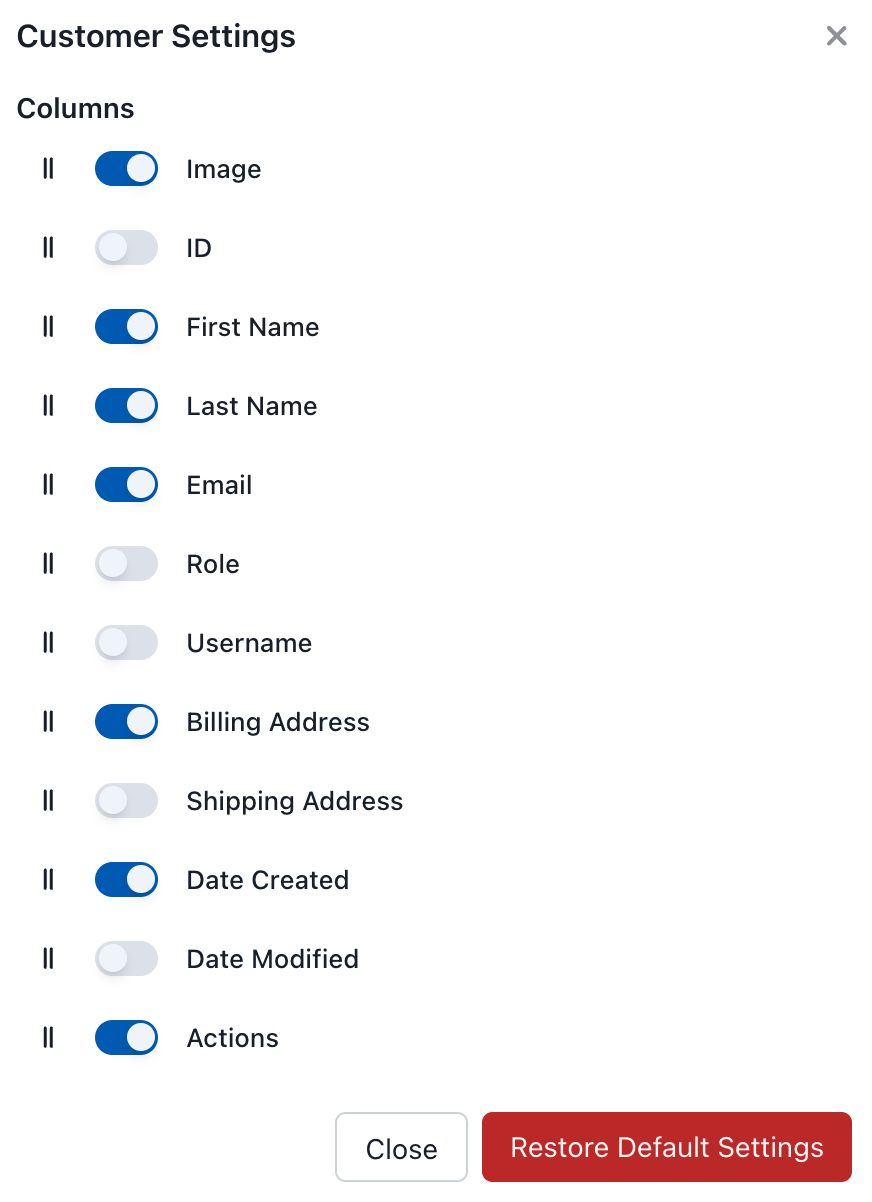
Customers Display Settings
Available Columns
| Column | Description |
|---|---|
| Image | Customer avatar |
| ID | WooCommerce customer ID |
| First Name | Customer first name |
| Last Name | Customer last name |
| Email address | |
| Role | User role (Customer, Subscriber, etc.) |
| Username | WordPress username |
| Billing Address | Billing information |
| Shipping Address | Shipping information |
| Date Created | When customer was added |
| Date Modified | Last update |
| Actions | Edit, Sync, Delete |
Customer Actions
Click the open arrow (›) at the end of a row to open the customer's edit modal. Sync and Delete are in the modal's footer:
- Edit - Modify customer details in the modal
- Sync - Refresh customer from server
- Delete - Delete the customer's WordPress user from your store
Deleting a customer from the POS deletes their WordPress user on your store. It is permanent: there is no Trash for WordPress users. If a customer is deleted in WooCommerce, the sync removes them from the POS too.
Default Customer (Guest)
When no customer is selected, orders are placed as Guest orders. Guest orders:
- Have no customer name, email, or address attached
- Cannot be looked up by customer in order history
- Are still visible in the Orders screen and WooCommerce admin
To avoid Guest orders, select a customer from the Cart Panel before checkout. If your business requires a customer on every order, consider training cashiers to always assign one — there is no built-in setting to enforce this.
Using Customers in Orders
To assign a customer to an order:
- In the Cart Panel, click the customer badge
- Search for the customer by name, email, or phone number
- Select the customer
- The customer is now associated with the order
Customer information (billing/shipping addresses) is automatically used for the order.
Synchronization
Customer data syncs between the POS and WooCommerce:
- Synced across devices - Changes appear on other devices at their next change check
- WooCommerce integration - Customers are stored in WooCommerce
- Offline capability - View customers even when offline